
Every public website gets visits from software. Search engines index it, SEO tools audit it, uptime monitors ping it, AI companies read it, and scrapers copy it. How much of that ends up in your stats depends on how your analytics counts a visit, and most site owners have never checked.
It matters because traffic numbers drive decisions. A post that looks popular gets updated and promoted, and a month that looks strong gets reported as one. If part of the number is machines, you’re steering by a figure that doesn’t describe your readers.
Two ways bots get into your numbers
Bots split into two groups, and they inflate different kinds of analytics.
Plain crawlers fetch the HTML of a page and leave. Search engines, SEO tools, AI crawlers, uptime monitors and feed readers mostly work this way. They never run JavaScript.
Script-running bots load the page in a real browser engine, usually headless Chrome, so the page’s JavaScript runs just as it would for a person. Page-speed testers, SEO tools that render pages, scrapers and some AI agents work this way, and so do browsers prefetching a page nobody has looked at yet.
Which group inflates your stats depends on where your analytics counts:
- A tool that counts on the server, such as a log analyser or a plugin that records every page WordPress builds, sees both groups. Without a good filter, plain crawlers swamp it, and on a small site they can outnumber people several times over.
- A tool that counts with a script in the browser, such as Google Analytics, never sees plain crawlers. It does see script-running bots, and any its own bot list doesn’t recognise show up as visitors.
So a script-based tool is cleaner by accident, and the bots it lets through are the ones that look most like people.
Signs your current stats are inflated
You can usually spot bot traffic in an ordinary analytics report:
- A sudden jump from one country you don’t serve, with no change in where your readers come from.
- Visits that view one page and leave in under a second, in large numbers.
- One page getting a burst of views at regular intervals, at the same time every day.
- Traffic that’s mostly direct, with no referrer, to pages nobody would type in.
- Browser versions that are years out of date, or screen sizes no real device has.
None of these proves bots on its own, and each has innocent explanations. Two or three together are a strong hint.
What server-side filtering does
Vireo checks every page request inside WordPress, before anything renders, and again when its tracking script reports a view. That lets it catch both groups.
For plain crawlers, it matches the user agent against over 800 named bots, the list in the bot directory, and treats requests with no user agent as bots. A request for a page is enough. The crawler doesn’t need to run anything to be recognised and counted.
For script-running bots, the user agent often lies, so Vireo looks at other signals:
- The flags automation tools set on the browser they drive, such as the webdriver flag. They survive a faked user agent.
- Prefetch and prerender headers, so a page the browser loaded in advance doesn’t count until someone looks at it.
- On Cloudflare, requests Cloudflare has marked as a verified bot or a likely threat.
- A daily cap. One visitor can add at most five views of a page and fifty views in total in a day. Past that, the views are reported as filtered instead of counted, which catches loops and scrapers that slip through everything else.
Everything it filters stays out of your pageview and visitor totals. Requests it recognises on the server are still counted, by category, so you can see what was removed and why. A browser carrying an automation flag simply never reports a view.
Some traffic doesn’t announce itself at all. For that, Vireo Analytics, Settings, Tracking has two lists: Excluded IPs / CIDR, for addresses or ranges you want ignored, and Countries to treat as junk, for countries you get spam traffic from and no readers.
How to check your own site
In Vireo, the Overview tab has a line under the main numbers: how many requests were kept out over the range you picked, and what share of everything Vireo saw that represents. Under it are the biggest categories, such as AI crawlers, search engines, SEO tools and headless browsers.
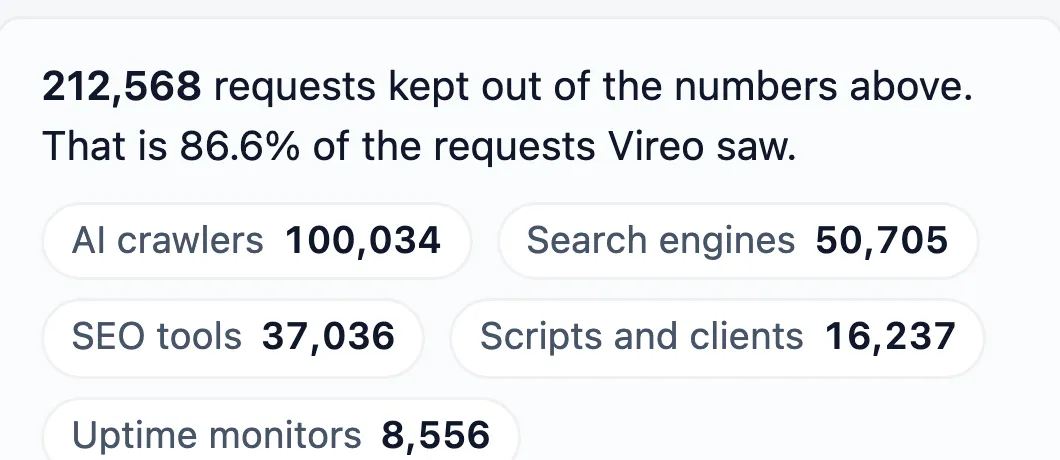
That share is the honest answer to how much of your traffic is bots. It’s often a large share, and that’s normal. A small blog still gets crawled by every search engine and SEO tool on the web.
To see how a particular visitor would be treated, go to Settings, Tracking, Bot filter test. Paste a user agent from your server logs and click Test User-Agent. It tells you whether Vireo would count it and which category it falls into.
AI crawlers get their own report, because what they take is worth comparing with what AI assistants send back. What AI crawlers take from your site covers that one.
Why your numbers drop when you switch
If you move from a tool that counted bots, expect your visitor numbers to fall. That looks like lost traffic, but it’s the same readers with the bots taken out.
The comparison that matters is between two filtered numbers, so compare trends rather than totals. If you’re bringing your old history into Vireo, the imported days keep whatever the old tool counted, bots included where it didn’t filter them. Leaving Google Analytics 4 without losing your history covers what comes across from GA4.
Why your server logs show more
Your host’s log reports will show more visits than Vireo, and that’s expected. A log counts every request from every crawler, monitor and scraper as a visit.
The bot counts themselves run low on a site with full-page caching. A cached page is served before WordPress runs, so nothing inside WordPress sees that request. The filtered share Vireo shows is real, and the true bot volume is higher. The bot filtering docs have the details.