
Free
Google Search Console in WordPress: searches per post
Vireo pulls your Search Console data into WordPress once a day, so each post shows the searches that found it, and the numbers stay in your database for as long as you keep them.
- Plan
- Free
- Connection
- A Google service account with read-only access
- Sync
- Daily, re-reading the last seven days
- Where
- Search & AI tab, and each post's stats
What you see
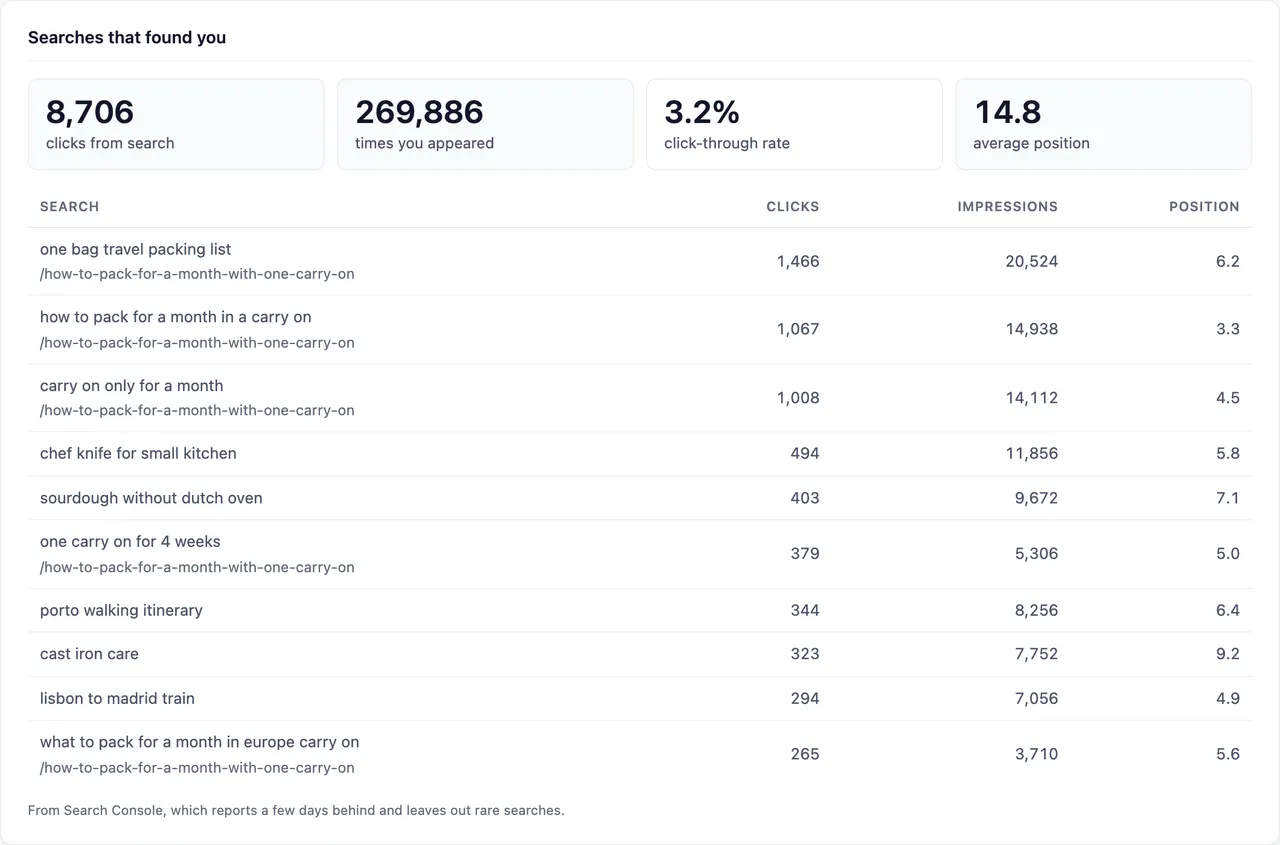
- "Searches that found you": clicks from search, times you appeared, click-through rate and average position for the range.
- Each search with its clicks, impressions and position, and the page Google most often showed for it.
- The searches behind a single post, on that post's stats.
Set it up
- In Google Cloud Console, enable the Google Search Console API and create a service account. Download its JSON key.
- In Search Console, open Settings, Users and permissions, and add the service account's address with Restricted access.
- In WordPress, go to Vireo Analytics, Settings, Search Console & API. Paste the whole key file into "Service account key (JSON)" and the property exactly as Search Console lists it into "Property".
- Click "Save Search Console settings". To fill in older data, click "Fetch the last 90 days".
A service account means there's no Google sign-in to renew later. The same steps are in the plugin under "How to get the key file".
Free or Pro
Free. Part of the free plugin.
Worth knowing
- Google's numbers aren't final for about three days, so the newest data ends three days before today.
- Search Console leaves out rare searches, so the per-search rows don't add up to the total clicks.
- A domain property (sc-domain:example.com) and a URL-prefix property are different properties. The wrong one returns nothing.
Docs
Related integrations
Try Vireo on your own site
Vireo Analytics is a free WordPress plugin. It counts visits without cookies and keeps everything in your own database.
Get Vireo free on WordPress.org