
Your analytics can tell you a reader came from Google. It can’t tell you what they typed. Google stopped passing the search term to websites years ago, so every analytics tool on your site sees a visit from google.com and nothing more.
The searches still exist. Google keeps them in Search Console, the free tool it gives site owners. The problem is that Search Console shows them by query or by page, in its own dashboard, away from the place you actually work on your posts.
This guide covers both ways to get at them: by hand in Search Console, and inside WordPress next to each post.
Why the search term is missing from your analytics
When someone clicks a Google result, their browser tells your site which page sent them. Google sends that as a bare https://www.google.com/, with the query stripped out. It’s been that way for every logged-in search since 2011 and for nearly all searches since 2013.
That’s why your referrer list shows Google as one big line. On mobile it can also show up as the Google app, which arrives with an android-app:// address instead of a website. Neither carries the words people used. The Google referrer explainer goes into the detail.
Doing it by hand in Search Console
If you only need to check one post now and then, Search Console does the job:
- Open Search Console and pick your property.
- Go to Performance, then Search results.
- Add a filter: Page, then “URLs containing”, and paste the post’s address.
- Switch to the Queries tab.
You get the searches that showed that page in Google’s results, with clicks, impressions, click-through rate and average position. Set the date range to the last three months for a fair picture, since a single week jumps around.
It works. It’s also five clicks per post, in a different tool, and you won’t do it for forty posts.
The searches next to each post, inside WordPress
Vireo Analytics connects to Search Console once and then shows each post’s searches on that post’s own stats screen, under its traffic. You see which searches found the post, how many clicks each one brought, and the average position the post held for it. Hover over a click count to see how many times the post was shown for that search.
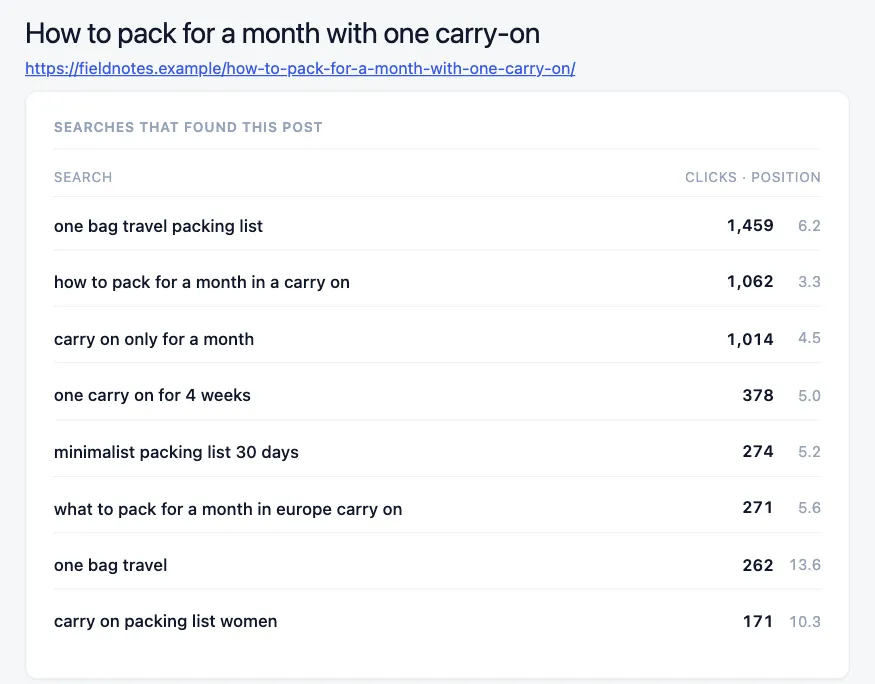
The Overview also lists your top searches across the whole site, with the page Google showed for each one.
Connecting is a one-time setup, most of it in Google’s console:
- In Google Cloud Console, create a project and enable the Google Search Console API.
- Create a service account and download a JSON key for it.
- In Search Console, add the service account’s address as a user with Restricted access, so it can read but not change anything.
- Paste the key and your property name into Vireo’s settings.
The property name has to match exactly. A domain property looks like sc-domain:example.com. A URL-prefix property is the full address, including https:// and any trailing slash. The wrong one returns nothing, which is the most common reason a first sync comes back empty.
Vireo then fetches the last three months in the background and keeps the recent days current. Google’s numbers settle over about three days, so the newest days fill in as they settle.
Reading the numbers
Two columns matter most.
Position is where the post ranked for that search, on average. Positions 1 to 3 get most of the clicks. Position 8 is the bottom of the first page. Anything past 10 is page two, where very few people look.
Clicks against impressions tells you whether people choose you when they see you. A search with plenty of impressions and almost no clicks means you’re showing up and being skipped. The cause is usually the title or the description Google shows, or a result that doesn’t answer the question in the search.
Finding posts worth refreshing
Three patterns are worth acting on.
A post ranking 5 to 15 for a search with real impressions is close. Rework the section that answers that search, make the heading say what the search says, and bring the details up to date. Moving from position 9 to position 4 can multiply the clicks from that one search.
A post getting impressions for searches you never wrote it for has found an audience you didn’t plan for. Either add a section that serves those searches properly, or write a separate post for them and link the two.
A post whose top search has a low click rate at a good position has a title problem. Rewrite the title and description to promise what the search wants, and check again in a few weeks.
Start with the close-but-not-there posts. They’re the quickest wins.
If you’re coming from another analytics tool
Search Console data doesn’t depend on which analytics plugin you used before, so this works from the day you connect it. If you’re also moving your traffic history across from Google Analytics, Jetpack or another plugin, the import guide covers what comes with you and what doesn’t.