
One client site is easy to report on. You log in, open the analytics, pick last month and write a few lines. At ten sites that’s an afternoon. At thirty it’s the first few days of every month, and the report you send is mostly copied numbers with a little commentary on top.
Every client site has a separate login and a separate analytics account, and each one gets a report put together by hand. The fix is to cut the number of places you have to look, and to let the reports go out without you assembling them.
Where the time goes
Logging in comes first. Each client site has its own admin, and often its own two-factor prompt. Checking whether traffic is up across your client list means opening every one of them, even the ones where nothing happened.
Then there are the analytics accounts you don’t own. In Google Analytics, each property sits inside an Analytics account. When that’s the client’s account, one of their administrators adds you by the email address of your Google account. Over a few years you collect access to dozens of properties spread across dozens of accounts. An administrator on any of them can remove you, for example after a staff change, and you find out when the monthly report is due.
The monthly report is the biggest job. Someone exports numbers from each site, pastes them into a template, adds a chart and writes the summary. It’s careful work that has to be redone every month, and it’s where mistakes creep in, such as last month’s figure left in or the wrong site’s chart pasted into a client’s report.
Broken tracking hides in all of this. When a client’s developer swaps the theme and the tracking code goes with it, the site records nothing, and the gap usually turns up when the monthly report shows a flat line.
The options
Which one fits depends mostly on what you already run.
Google Analytics with Data Studio, formerly Looker Studio, is one route. Data Studio is free, and a data control lets a single report switch between the Google Analytics properties you have access to, so you build the report once. The properties still belong to the clients, though, and the report can only show the ones they’ve given you access to.
If you manage client sites with MainWP, its paid Pro Reports add-on builds branded client reports from tokens, and MainWP’s analytics add-ons for Google Analytics, Matomo and Fathom add their numbers to those tokens.
Or the analytics can live in each WordPress site, which is the approach Vireo Analytics takes. The data sits in the client’s own database, there’s no third-party account to keep access to, and the question becomes how to see many sites at once.
The free route: each site’s own dashboard
The free plugin gives every site its own dashboard, so a client can log in and see their traffic without you in the middle. Two parts of it help with reporting.
The weekly email digest sends the last seven days’ pageviews, visitors, top pages, referrers and countries from the site itself, on the day and hour you pick. Add the client’s address and your own as recipients and the weekly update goes out without anyone writing it.
Each site also runs its own MCP server, so you can connect Claude or Cursor and ask about that site’s traffic in plain language. On the free plugin that’s one connection per site, which works well for a handful of clients and gets tedious at thirty.
On a WordPress multisite network, the network admin gets an Analytics screen that lists every site with its visitors and pageviews, with a link to each one’s dashboard.
Vireo Pro: one install for many client sites
Client sites can report into your own WordPress install as connected sites. The free plugin allows one, and Pro raises the limit with your plan. You add each client under Settings, Tracking, Connected sites, and paste the tag Vireo gives you into their site. The client site doesn’t need to run WordPress. A static site, a landing page or a docs site works, as long as you can add a script tag to it.
Each connected site keeps its own numbers, and a selector on your Overview switches between them. Per-post reports, Search Console and Pro’s own reports such as revenue stay with WordPress sites, since they’re built from the site’s posts and store.
With Pro, one AI assistant connected to that install can answer about every client site through one MCP connection. A typical first question:
Which of my client sites are up or down this month?
The assistant gets every site, busiest first, with this period’s pageviews and visitors next to the previous period, the change in percent, and the last day each site recorded a visit. That last date is how you catch broken tracking. A client whose last visit was three weeks ago almost certainly lost the tag, and you can ask directly:
Has any client site stopped recording visits?
From there you can drill into one site by name. “What were Client B’s top pages last week?” runs the same top pages report against that client only. Totals, traffic sources, referrers, countries, devices, 404s and Core Web Vitals all work per site.
If you already use MainWP
Agencies that manage client sites through MainWP don’t need connected sites for those clients. Vireo Pro has MainWP support built in: install Pro on your MainWP dashboard site, activate the license, and it registers itself with MainWP. Each child site needs the free MainWP Child plugin and Vireo Analytics. There’s nothing else to set up on the child.
On the dashboard you get:
- A Vireo Analytics widget on MainWP’s Overview, listing each child’s visitors, pageviews and change over 7 or 30 days, from the last sync.
- A Vireo Analytics page for each child, with its visitors, pageviews, top pages and top referrers, fetched live.
- Tokens for MainWP’s Pro Reports, such as
[vireo.visitors],[vireo.pageviews.change]and[vireo.top.pages], filled in for each report’s site and dates. - The same AI assistant questions as above, asked once on the dashboard and answered across every child.
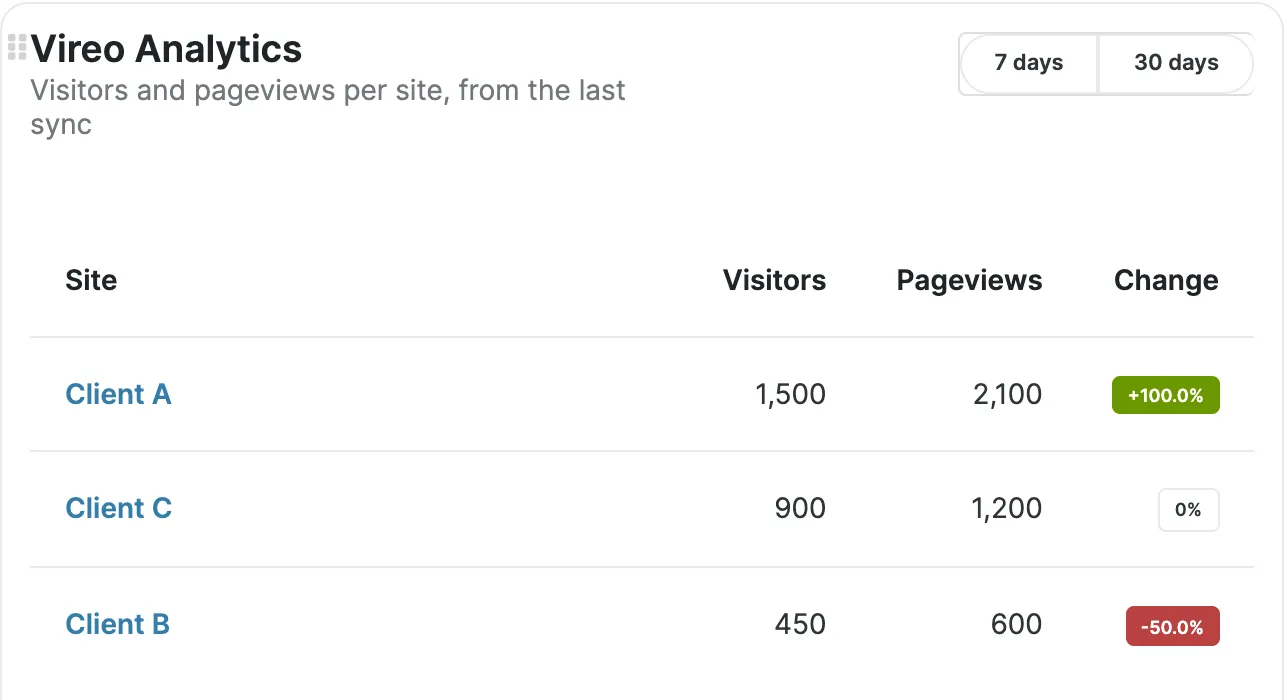
Keep the children on Vireo Analytics 0.12.4 or later. The widget, page and tokens work from 0.9.0, but the assistant’s questions need 0.12.4, because older versions can’t read a request that carries a date range. A child that can’t answer is listed with the reason, such as Vireo not being installed or the site not responding, instead of dropping out of the totals without a word.
If you used the separate Vireo Analytics for MainWP plugin before, deactivate it. Pro does the same job, and leaves MainWP alone until the old plugin is off. The MainWP section of the docs lists the error each refusal returns.
Weekly reports that send themselves
The free digest is plain numbers. With Pro active on a site, the weekly report replaces it and can be AI-narrated: a short written read of what changed that week, with the numbers underneath. It uses whichever AI provider the site has set up under Settings, Connectors, which needs WordPress 7.0 or newer, and Vireo stores no API key of its own. If the provider fails, the report goes out plain.
The weekly report is sent by the site it describes, so each client site that should get a narrated email needs Pro active on it. “Run dry preview” shows the report without sending it, which is worth doing once before a client sees one.
A client site running Pro can also give its owner a shareable read-only dashboard, with an optional password and expiry date, for when they’d rather look for themselves than wait for the email.
How many sites you pay for
Vireo Pro comes in plans of 1, 5, 25 or unlimited sites, and the unlimited plan has a fair use limit of 100. A connected site counts as one site, the same as a WordPress site running Pro.
The arithmetic for one install is one connected site, plus one for every site your license has unused. A 25-site plan active only on your agency’s own site can hold 25 client sites there. Activate Pro on five client sites as well, for their weekly reports, and the install has room for 20.
MainWP children count toward the same allowance when the assistant reads them. Connected sites use it first, and children take what’s left in the order you added them to MainWP. A child beyond the allowance still shows up in the assistant’s list, marked as over the plan, but its numbers can’t be read until you add sites to your plan.
Picking a setup
If your clients already live in Google Analytics and the monthly report is the product, Data Studio or MainWP’s Pro Reports may be all you need. If you’d rather the data stayed in each client’s own site, free Vireo with the weekly digest covers a small client list. Once you’re past ten or so and want one place to ask how every client is doing, Pro’s connected sites or its MainWP support is where it starts saving time.